

Kubernetes namespace
We use a managed Kubernetes cluster provided by Azure that is backed by multiple VMs. To allocate VM resources to various projects, we rely on Kubernetes namespaces and quotas. These quotas ensure that each project receives the CPU and memory resources that were specifically reserved for it. During the project setup, we will discuss with the customer their CPU and memory requirements for their apps, which can be increased later upon request. Additionally, namespaces facilitate tenant separation between different projects. The project name always follows this convention: workspace-<company(in 4 letters)>-<project-name>
Members of the project’s user group have read access to the namespace. The deployment to this namespace is done over GitLab CICD.
Accessing Kubernetes (command line)
Kubernetes access is essential to have an insight to your environment or your deployments.
To access the Kubernetes namespace, you should have the following tools:
Here are the necessary commands to access the namespace in staging environment via command line:
-
Login to Azure:
-
Use the following command to log in to your Azure account:
Terminal window az login -
Follow the prompts to authenticate.
-
-
Access the Kubernetes Namespace:
-
First, set the context to your Kubernetes cluster using the cluster credentials:
Terminal window az aks get-credentials --resource-group WEU-DS-ARG-NextPlatform-qas-1 --name WEU-DS-AKS-NextPlatform-qas-1 -
The above command is for the staging/qas environment. To access the development/dev environment, please replace the variable values as follows:
- Resource group —
WEU-DS-ARG-NextPlatform-dev-1 - Cluster (—name) —
WEU-DS-AKS-NextPlatform-dev-1
- Resource group —
-
To access the production/prd environment, please replace the variable values as follows:
- Resource group —
WEU-DS-ARG-NextPlatform-prd-1 - Cluster (—name) —
WEU-DS-AKS-NextPlatform-prd-1
- Resource group —
-
The above command will create the ~/.kube/config file in the user root directory. The kubeconfig file has the cluster authentication information and is primarily used by kubectl to authenticate and access the cluster.
-
Next, we set the kubectl authentication method to Azure CLI:
Terminal window kubelogin convert-kubeconfig -l azurecli -
Now, you can set the current context to your namespace:
Terminal window kubectl config set-context --current --namespace=<namespace-name>kubectl get pods -n <namespace-name> -
Replace
<namespace-name>with your project-name(workspace-<company(in 4 letters)>-<project-name>)
-
-
View Pods and Logs:
- To list all pods in the current namespace:
Terminal window kubectl get pods - To view logs for a specific pod (replace
<pod-name>with the actual pod name):Terminal window kubectl logs <pod-name> - To access the pod console
Terminal window kubectl exec -it <pod-name> -- /bin/sh
- To list all pods in the current namespace:
Accessing Kubernetes (Azure Portal)
Azure Kubernetes can also be accessed with the Azure Portal. The portal can be found here : portal.azure.com
In the Kubernetes services you can see all Kubernetes environments you have access to.
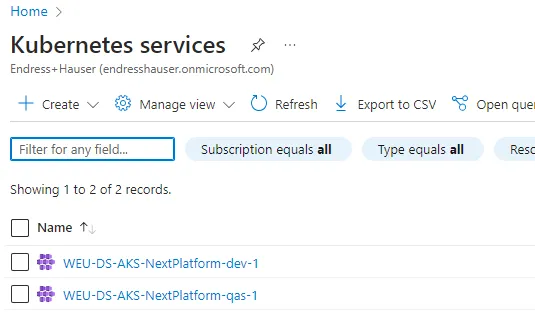
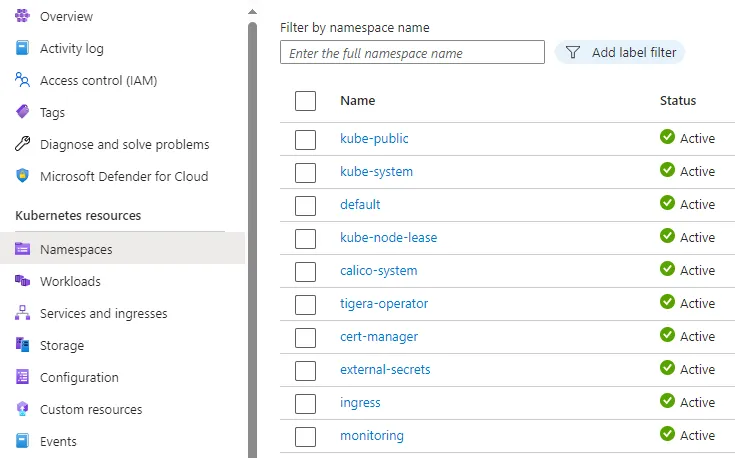
Due to internal restrictions to the Azure Kubernetes right system in combination with the Azure Portal, currently you can see all namespaces in the kubernetes environment, but you only have access to resources in namespaces assigned to your user.
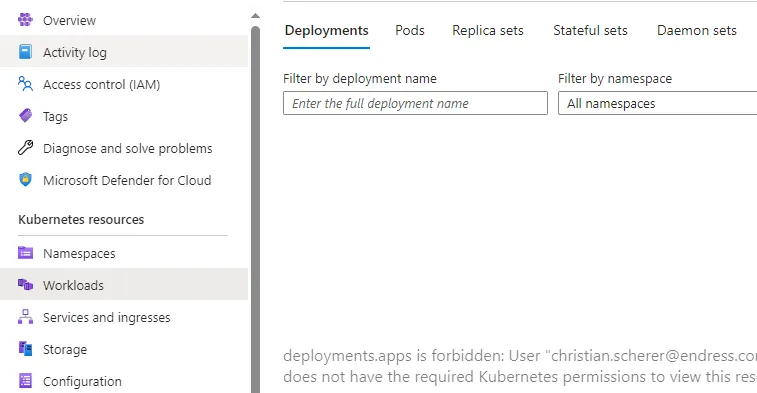
If you click on a kubernetes resource other than the Namespaces, you have to select your namespace, otherwise you will get an error
If you have selected a correct namespace, the resources are shown
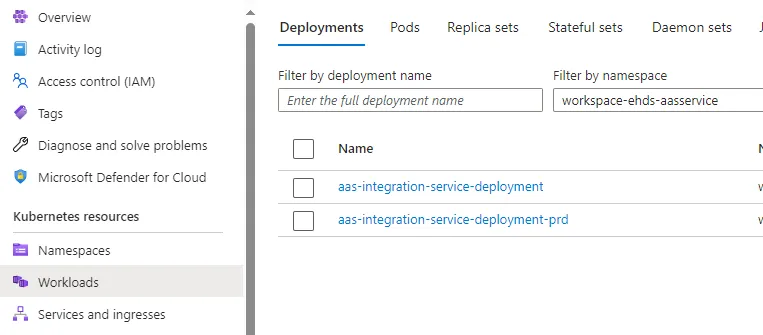
Currently these Azure Portal possibilities are only available in staging environment. If any resource is not accessible, please inform us. Currently the following operations are allowed on resources :
get, list, watch, update, patch, delete
The creation of resources is intentionally not allowed