

GitLab Deployment Repositories
For the deployment of containerized applications available in the container registry you have to use GitLab deployment repositories provided by us.
In these repositories Helm charts have to be used, where your applications can be configured.
GitLab Helm chart Repositories
Every project gets its own folder for GitLab Helm repositories under the folder https://egit.endress.com/next/deployments. The project folder itself is named [company]-[project].
For every service you want to deploy in your project and which is configured in the project configuration as a program, an own GitLab repository is created in this project folder named like the program in the configuration.
Access management via self-service
Access to the GitLab Helm chart repositories is given via the configuration file in the project configuration repository https://egit.endress.com/next/deployment/project-configuration. For each project, an own configuration file is created in this project and initially, every maintainer configured during the project setup will have the rights to change colleagues in this repo in a self-service way. This means that you can add or remove your team members to the GitLab project team subgroup for the deployment repositories on your own.
For more information about the self-service access management, please check the documentation
Protected branches
To enforce Merge Requests for different branches, you can use the self-service access management. There you can set the branches to protected and only allow specific users to push to these branches. This way you can ensure that only reviewed and approved changes are applied to the different environments.
If you want to have more detailed merge rules, you can also use CODEOWNERS files.
For more information about the self-service access management, please check the documentation
Helm chart
Fore each new generated program in a project a Helm default template will be automatically created with the new program git repository.
A Helm chart is a package that contains all the resources needed to deploy an application to Kubernetes.
For more information: https://helm.sh/.
You can adapt the existing one or can replace it completely with an own one.
Automatic deployment
All changes to the Helm chart repositories will be automatically applied to the different environments after check in.
To have the control, to which environment the changes should be applied, each environment is directly linked to a fixed branch name.
The branch has to be named exactly like the environment names.
This means to make changes in
- global dev environment (weu-dev), you have to make changes in branch
weu-dev - global staging environment (weu-was), you have to make changes in branch
weu-qas - global prod environment (weu-prd), you have to make changes in branch
weu-prd
GitLab Pipelines
This automatic deployment is done with the help of GitLab pipelines. These pipeline files will be managed by the NEXT team.
Any change you are checking in the given branches, triggers the deployment pipeline which will deploy the Helm chart.
Label to connect to Firewall setup(WAF)
If you requested to enable WAF for your project, the routing of the endpoints to the pods works as with every Kubernetes service based on label selectors. The label field is fixed to next-loadBalancer-app and the value will be set in the project configuration.
selector: next-loadBalancer-app: <value mentioned in your project configuration>Deployment Helm Template
The template provided by us has the following structure:
program-template└─── README.md└─── values.yaml└─── Chart.yaml│└─── templates └─── deployment.yamlDetails about each of the files in the structure can be found in the repository’s README.md file.
If you would like to start off with a simple deployment to play around in the Kubernetes environment, the “values.yaml” and “deployment.yaml” are the files of interest:
values.yaml
# Declare the variables to be passed into your templatereplicaCount: 3
image:    repository: cir.endress.com/eh-ds-next/ubuntu    tag: 22.04    pullPolicy: Always
imagePullSecrets: # Specify the secret to use for pulling the image    - name: artifactory-secret
deployment: # deployment name is added from the pipeline name: 'templateApp'-
replicaCountThis field specifies the number of pods that will spin up when a deployment is made -
imagerepositoryHere you can specify the repository you are pulling your image fromtagSpecify the version of imagepullPolicyThe value is set to Always. This means that the latest version of the image will be pulled by the cluster if there is any update/change
-
imagePullSecretsThis setting is used to pull a secret created from the technical user credentials for the E+H Artifactory-
The NEXT technical user credentials are available in the Key Vault and synced to a Kubernetes secret under the name “artifactory-secret”. It can simply be referenced in
imagePullSecretsof the Helm chart. -
The technical user credentials for Github Container Registry(available currently for netilion-hub, netilion-monorepo) are available in thr Key Vault and synced to a Kubernetes secret under the name github-registry-secret. It can simply be referenced in
imagePullSecretsof the Helm chart. -
For own technical user, credentials should be stored in Azure Key Vaults (as described in previous section) and the name of the Kubernetes secret should be referenced in
imagePullSecretsof the deployment file for a successful deployment.
-
-
deploymentnameThis field specifies the name for the program when a Deployment is created
deployment.yaml
A part of the template file that shall be adapted to the needs of the project is mentioned here:
template: spec: containers: resources: requests: cpu: '200m' memory: '20Mi'requestscpuThis field specifies the compute processing request in millicpusmemoryThis field specifies the RAM request in mebibytes
Assistance can be provided by NEXT team for information regarding Kubernetes configuration (For example with horizontal scaling using replica sets)
The actual deployment is triggered by the GitLab pipeline “pipelines/program-default.yml”, by executing the following command:
helm upgrade -i $CI_PROJECT_NAME ./ -n $KUBERNETES_NAMESPACE --set chartCommit=$CI_COMMIT_SHORT_SHACommand parameter descriptions:
$CI_PROJECT_NAME: The name of the Helm release, usually set automatically by GitLab CI to match your project name. This determines the name of the deployment in Kubernetes../: The path to the Helm chart directory. Here,./refers to the current directory, which should contain your Helm chart files.-n $KUBERNETES_NAMESPACE: Specifies the Kubernetes namespace where the release will be deployed.$KUBERNETES_NAMESPACEis set by the pipeline to target the correct environment (e.g., dev, qas, prd).--set chartCommit=$CI_COMMIT_SHORT_SHA: Overrides thechartCommitvalue in the Helm chart with the short SHA of the current Git commit. This is useful for tracking which chart version is deployed and enables traceability between deployments and source code changes. The projectnetilion-hubuses thischartCommitto create an extended release version marker for the NewRelic monitoring service.
This command will either install a new release or upgrade an existing one, ensuring your application is deployed with the latest chart and configuration from your repository.
Kubernetes Resources
It is not possible to deploy any container to the NEXT Kubernetes without giving the container resources information. At least the resources.requests.cpu and resources.requests.memory have to be set.
This information assigns the amount of CPUs and Memory to each instance of your service.
Pod Disruption Budgets
During Kubernetes cluster upgrades, nodes are drained and restarted, which can cause your application pods to be evicted and restarted. This can lead to temporary downtime or degraded performance—especially for stateful or critical workloads.
To help mitigate this, we recommend configuring Pod Disruption Budgets (PDBs) for your workloads. PDBs allow you to define the minimum number or percentage of pods that must remain available during voluntary disruptions, such as upgrades or node maintenance.
Keep in mind to not have maxUnavailable=0 and minAvailable == .spec.replicas, since this will not allow the nodes to drain and cause the upgrades to fail.
Rollback Mechanism
When an application is deployed to the Kubernetes cluster and needs to be reverted to a previous version, the following are the two suggested rollback strategies. The time it would take to revert depends the helm resources in the chart, but on average should take ~2mins to deploy.
-
Git-Based Rollback via GitLab CI/CD
This strategy involves reverting the relevant commit in the GitLab repository. This could be done either from the Gitlab UI(check the image below), or via terminal with the
git revertcommand. Note that this strategy might not work if the image tag in your helm chart islatest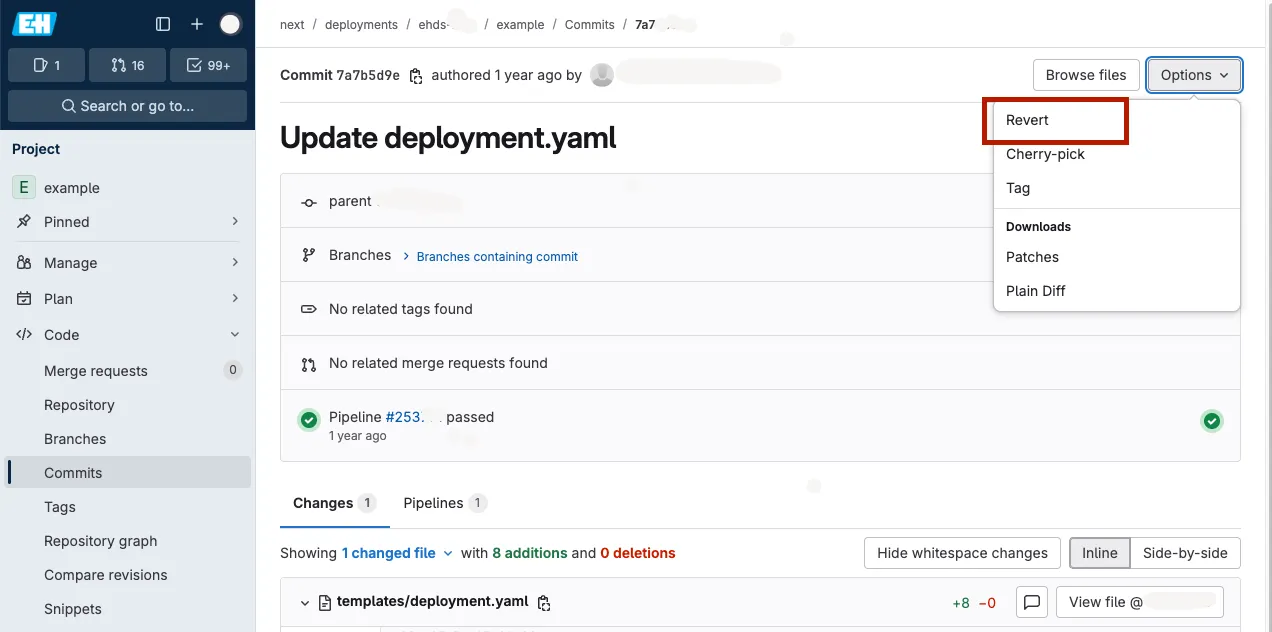
Once the commit is reverted in the relevant branch, the GitLab CI/CD pipeline is automatically triggered, redeploying the application with the previously stable helm chart.
This method is ideal for maintaining a clean version history, ensuring traceability, and aligning with standard development workflows.
-
Helm-Based Rollback via Terminal
This strategy is useful for quick rollbacks without modifying the Git history. It allows you to revert to any previous Helm release version directly from the terminal.
To perform a rollback:
-
List Helm releases in your namespace to find the chart to rollback:
Terminal window helm list --namespace <namespace> -
View release history for the specific version:
Terminal window helm history <release-name> --namespace <namespace> -
Rollback to a previous version:
Terminal window helm rollback <release-name> <revision-number> --namespace <namespace> -
Verify the deployment:
Terminal window kubectl get pods --namespace <namespace>
-